
The person and scene remain visual references
Face, hairstyle, skin tone, body proportions, pose, lighting, and background continue to guide the result. They are visual references rather than pixel locks, so review the preview before use.
Start with one portrait or full-body photo for an AI-styled look, or add a second outfit image to guide a specific garment or complete outfit. Preview the result as an image or 5-second video.
Pick your subjects, choose image or video, and generate.
First subject
Outfit reference (optional)
Before / After
Pick your subjects on the left, then generate to see the before and after side by side.
Better photos, better results
Two ways to start
An AI clothes changer swaps the outfit while using the original person and scene as visual references. Start with one subject photo or LumiChat original character and leave the outfit slot empty for an AI-designed look. Add a second garment or complete-outfit image when you want its color, cut, silhouette, material, pattern, and accessories to guide the result. Treat the result as a styling preview rather than a measurement-accurate fit simulation.
Instead of starting from a new anonymous upload each time, choose a LumiChat-owned fictional character with a profile and generation-ready reference art, then reuse that identity across AI Studio. Generated content is licensed for personal use; commercial use can be separately authorized in writing.
Read IP and usage rights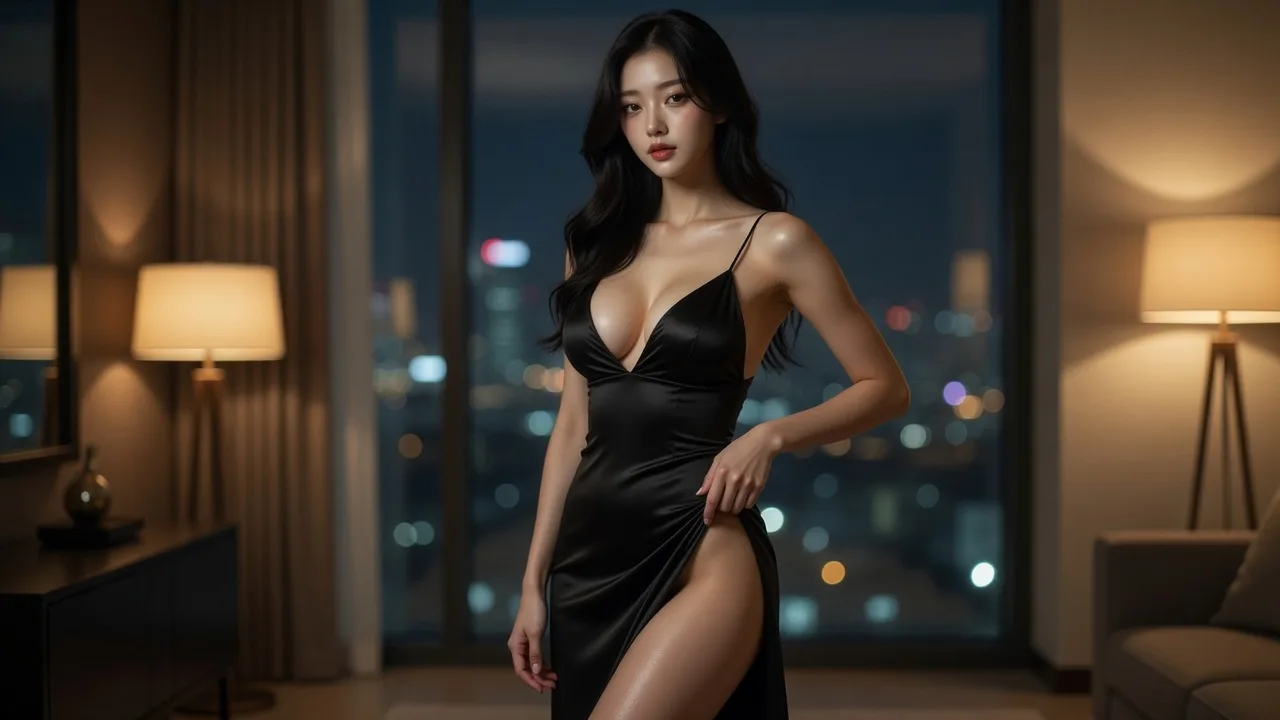
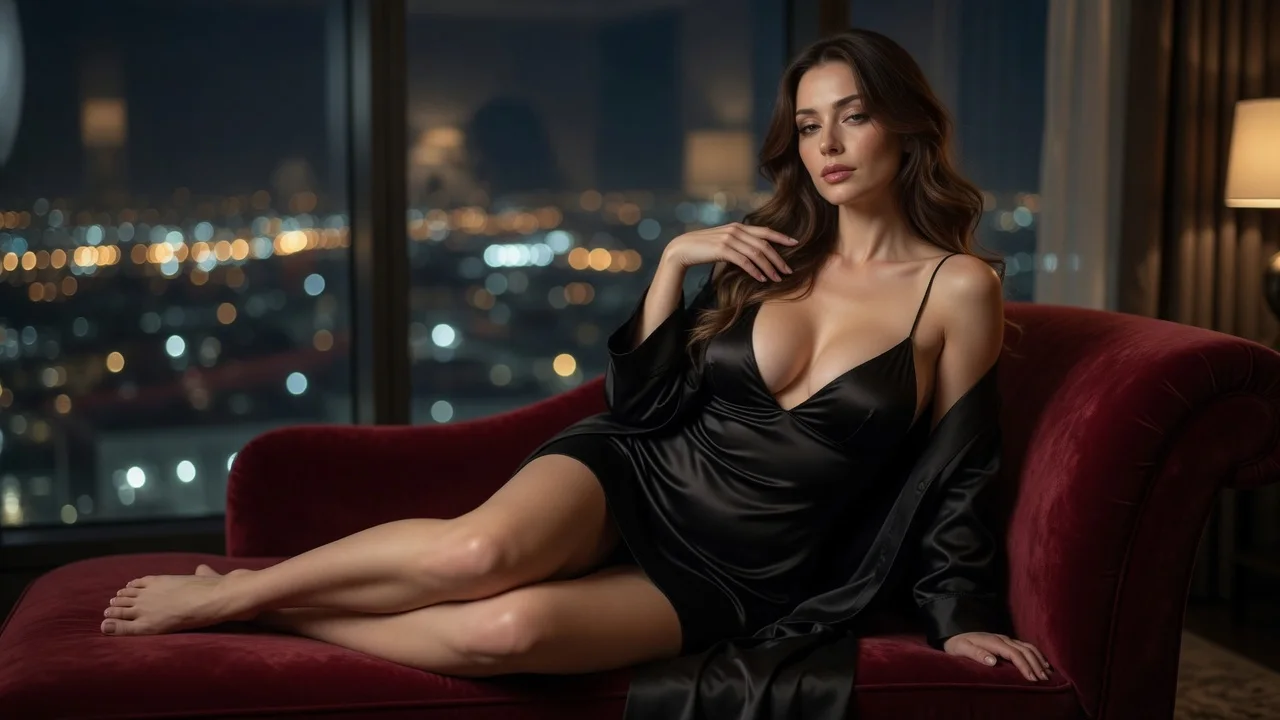
Use one well-lit portrait or full-body photo, or choose a LumiChat original character. Clear clothing edges and a visible pose give the AI better fit cues.
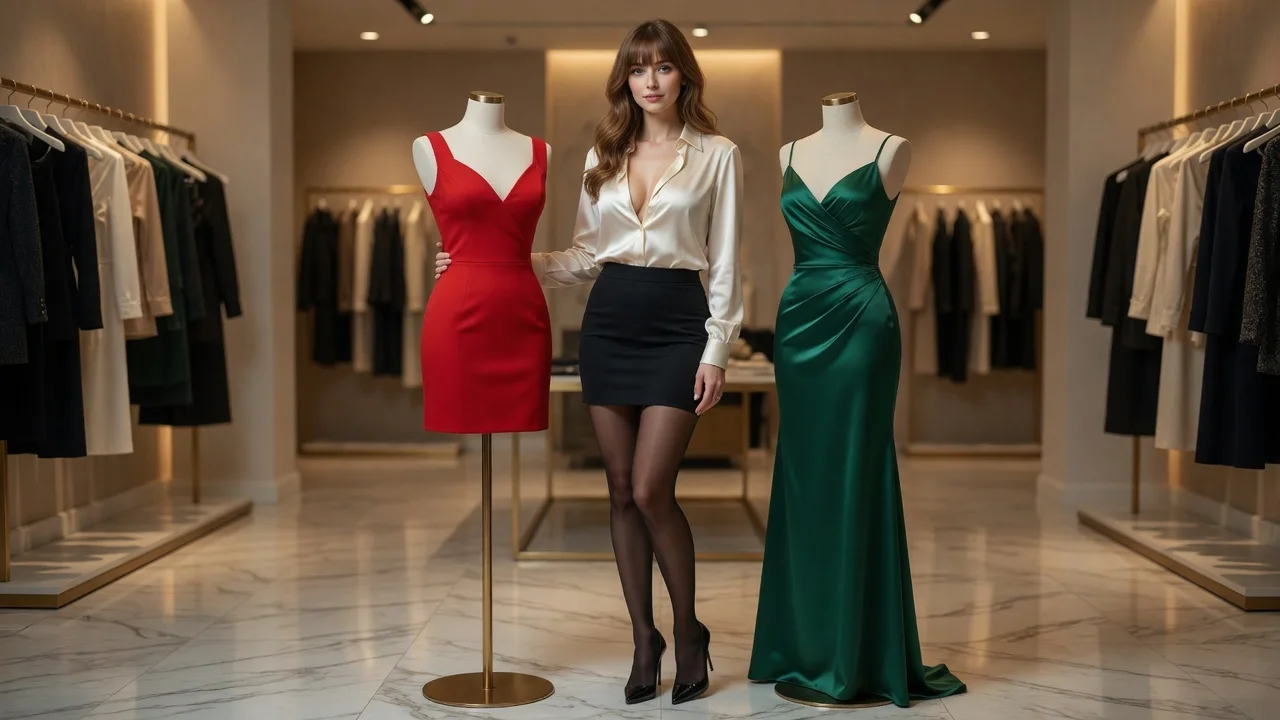
Upload a garment or outfit image as the visual brief for a specific look. Skip the optional slot when you want the AI to select a style for the subject.
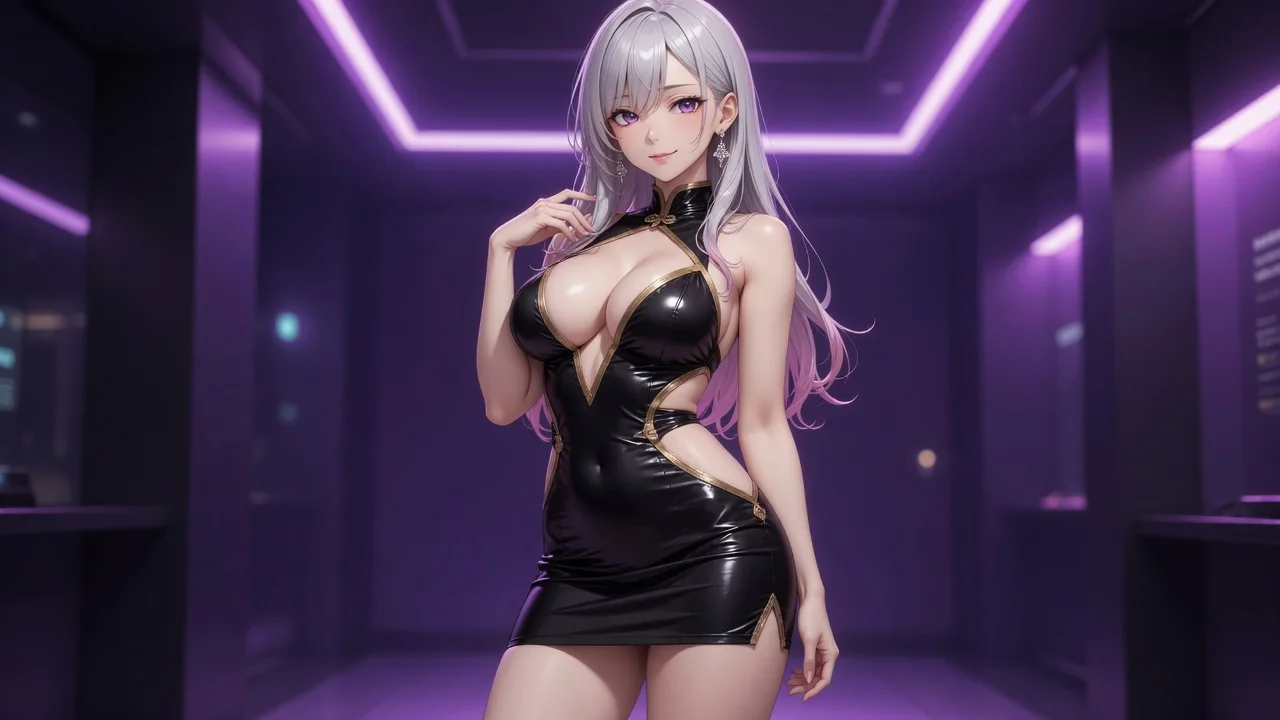
Choose an image for a quick side-by-side preview or a 5-second video to animate the generated outfit. Review garment details, identity, and accessories before saving the result.
The outfit changes while the original person and scene continue to guide the generated result.
Face, hairstyle, skin tone, body proportions, pose, lighting, and background continue to guide the result. They are visual references rather than pixel locks, so review the preview before use.
Upload one portrait or full-body image and leave the outfit slot empty when you want the AI to design a different outfit for the subject and scene.
Add a garment or complete-outfit image to provide visual direction for color, cut, silhouette, material, pattern, styling, and key accessories.
Generate a 1280×1280 try-on image for quick comparison, or choose video to animate the approved look into a 5-second clip. At the current default setting, an image costs 8 credits and a video costs 90 credits; the studio updates the estimate for your selected options.
Use an outfit reference when you already know the look, or leave it empty for AI styling. Clothes swaps work well for shopping ideas, first-pass ecommerce lookbook concepts, events, cosplay, character concepts, and social content. The output is a visual styling preview rather than a measurement-accurate fit simulation, so confirm fabric, sizing, and product details separately before a purchase or publication.
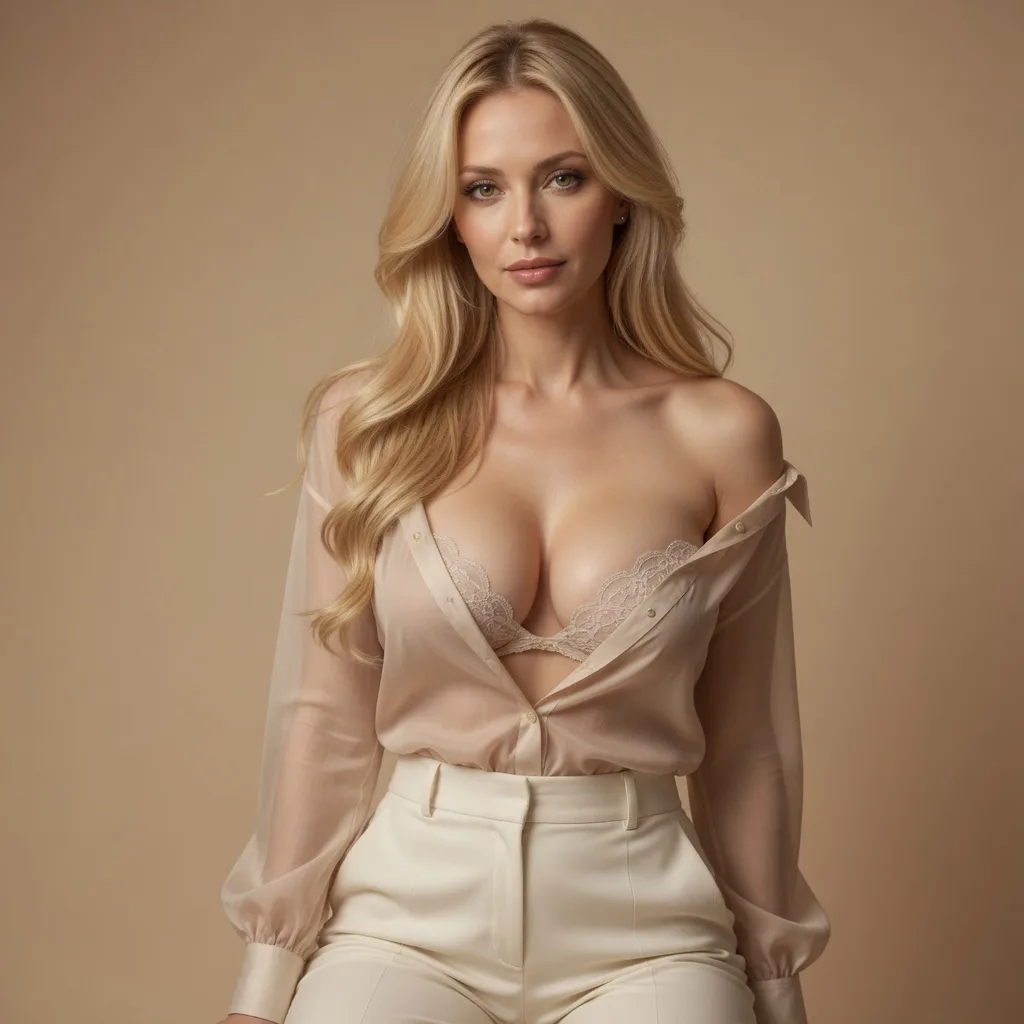
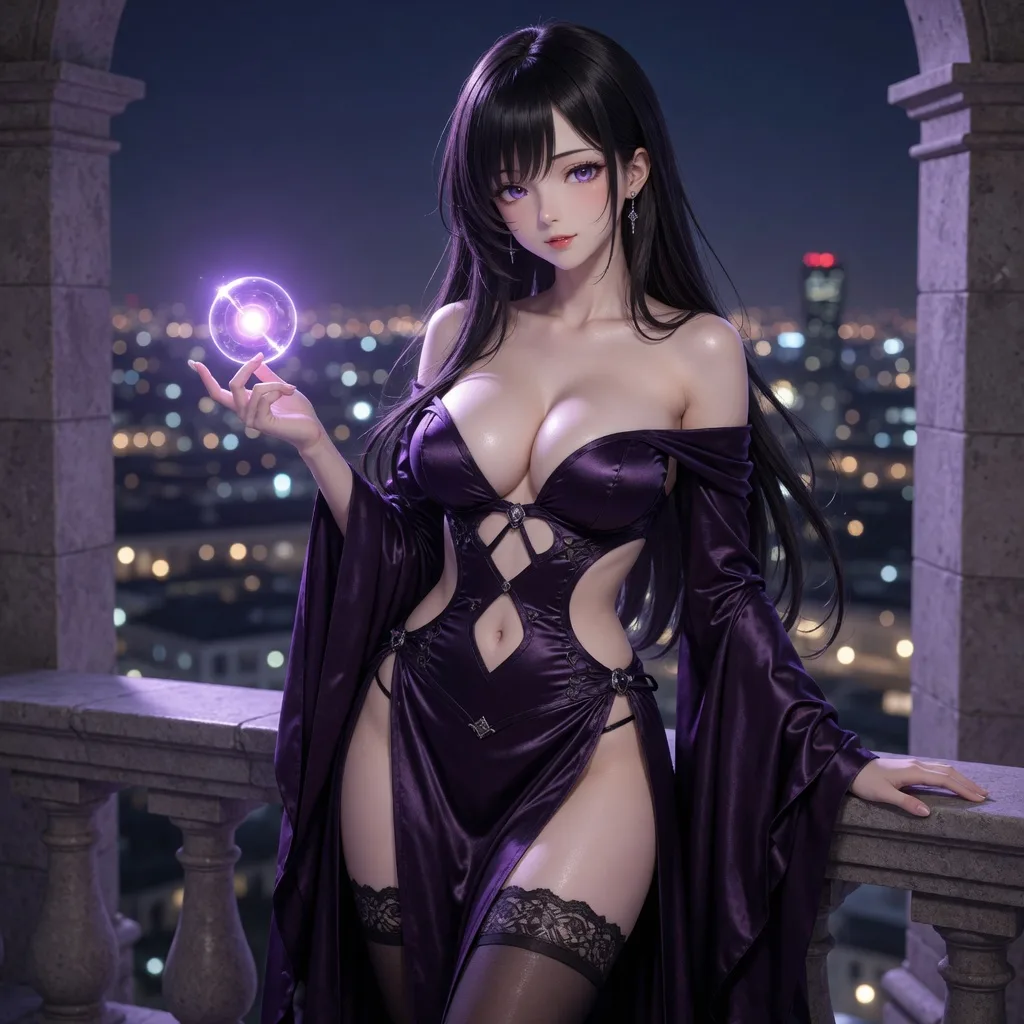
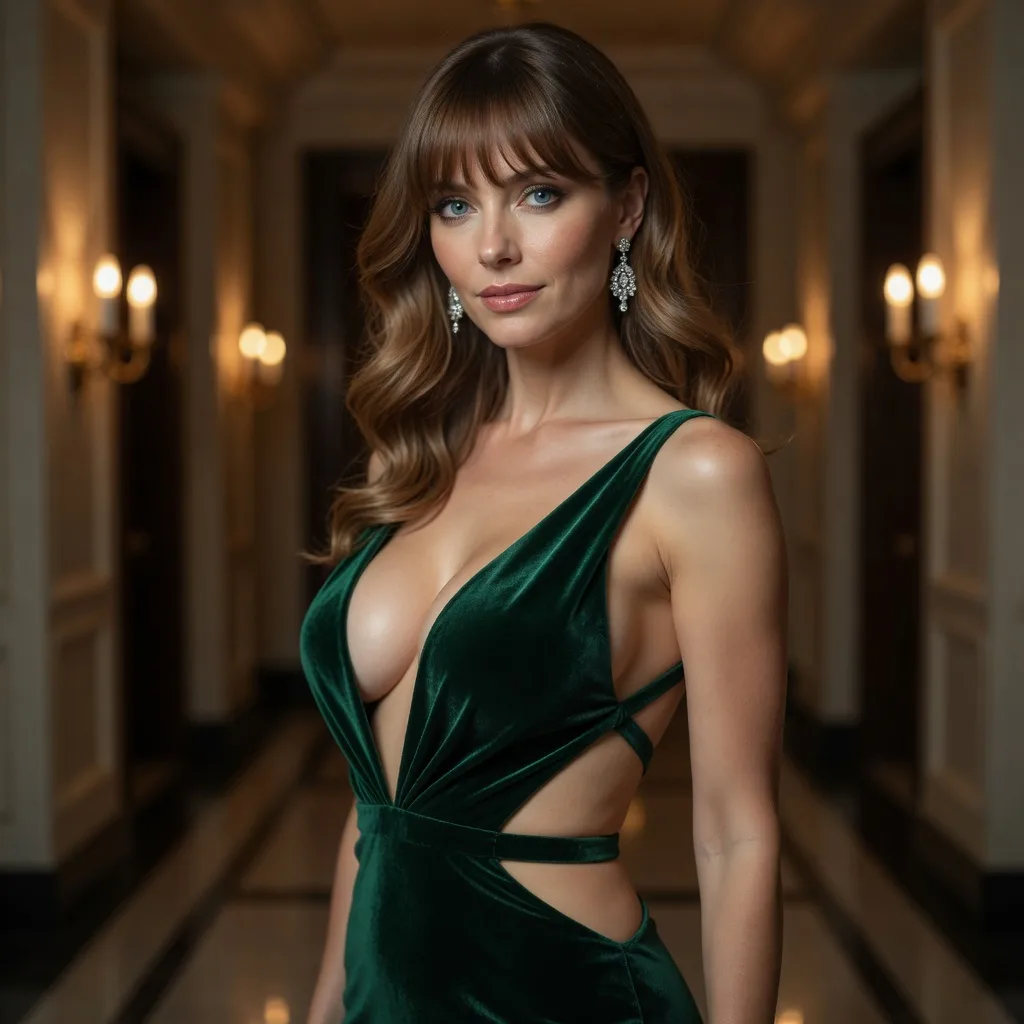
Turn two people into a hug image or short video
Create a couple, wedding, or anniversary kiss scene
Replace facial identity while using the target scene as reference
Design a new look or virtually try on a reference outfit
Adjust clothing on one subject with the selected setting
| AI tool | Best for | Materials needed | Output | Action |
|---|---|---|---|---|
| AI Hug Generator | Turn two people into a hug image or short video | 2 subject photos or characters | Image · Video | Make a hug video |
| AI Kiss Generator | Create a couple, wedding, or anniversary kiss scene | 2 subject photos or characters | Image · Video | Generate a kiss video |
| AI Face Swap | Replace facial identity while using the target scene as reference | Target photo + source face | Image · Video | Start AI face swap |
| AI Clothes Changer | Design a new look or virtually try on a reference outfit | 1 subject + optional outfit image | Image · Video | Start AI clothes changer |
| AI Clothes Remover | Adjust clothing on one subject with the selected setting | 1 subject photo or character | Image · Video | Start clothes remover |
Use a clear, well-lit portrait or full-body photo where the current clothes and pose are visible. Heavy crops, crossed arms, large objects in front of the outfit and very dark lighting give the model fewer fit cues.
Yes. Upload a clear outfit or garment image in the optional second slot. It becomes the visual brief for color, cut, pattern and styling; generated details can vary from the source, so review the result before making a purchase decision.
The original face, hairstyle, skin tone, body proportions, pose, lighting and background guide the generation. They are references rather than pixel locks, so small details can change between results.
Use the clothes swap for menswear, womenswear, formal looks, party and festival outfits, cosplay, costumes, uniforms or seasonal styling. Upload only photos and outfit references you own or have permission to use.
Image generates one outfit-swap still for a quick before-and-after comparison. Video first creates that look, then animates the generated frame into one 5-second clip.
At the current default setting, an image costs 8 credits and a 5-second 720p video costs 90 credits. The studio updates the estimate for the selected options before generation, and failed jobs release their reservation.
There is no fixed ETA because processing time changes with queue demand and output type. Image generation runs the clothing composition; video adds a separate motion pass after that look is created. The generator shows the current status until delivery.
The current default image output is 1280×1280. Video output is one 5-second 720p clip; the studio shows the active output and price before you generate. Treat the result as a visual styling preview rather than a measurement-accurate fit result.
Upload only images you own or have permission to use. LumiChat’s Privacy Policy explains that media generation requests are collected to deliver media and operate the service, personal data is not sold, and account holders can request export or deletion. It does not promise an automatic photo-retention period, so review the policy before uploading sensitive images.
Yes, generation requires a signed-in account so results can be tied to your credit balance and retrieved later.
The displayed fixed price is reserved when generation starts and charged in full when the result is delivered. Failed generations release the reservation.
You can choose a character, upload a subject and outfit reference, and select the output before signing in. Sign-in is requested only when generation starts, and new accounts begin with credits for trying the tool.
There is no per-day cap on the number of generations. The only limit is your credit balance, and failed generations release their hold automatically so a failure never costs you credits.
Start with one portrait or full-body photo for an AI-styled look, or add a second outfit image to guide a specific garment or complete outfit. Preview the result as an image or 5-second video.
Start generating