
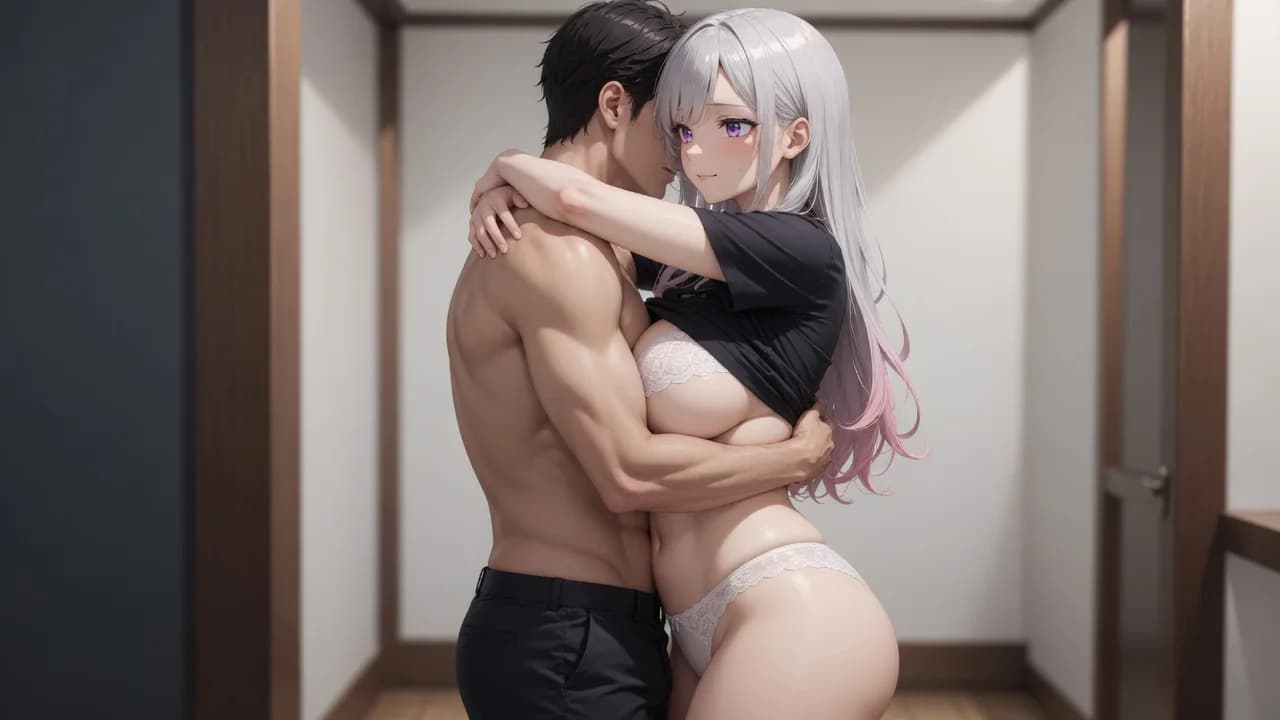
Two-photo AI hug guide
How to Make an AI Hug Video from Two Photos
Learn how to make an AI hug video from two photos, choose compatible portraits, keep both identities stable and review a five-second embrace safely.
Author: LumiChat AI TeamPublished:
10 min read
Quick answer
What this guide explains
To make an AI hug video, place two clear adult photos or eligible original characters in the subject slots, choose image or five-second video, then generate. LumiChat first composes one shared embrace frame from both references and can animate that frame into a continuous short clip. Review both faces, arm wrap, shoulder contact and background before saving. Use only photos you own or have permission to process.
- What an AI hug generator from two photos actually does
- Choose two photos that can wrap around each other
- How to make an AI hug video step by step
AI creation quick access
Explore AI creation tools
Three tools are selected at random from AI Hug, AI Kiss, Face Swap, Clothes Changer and Clothes Remover on every visit. On mobile, open More features for the full studio.


AI Creation
AI Clothes Changer
Restyle a photo or guide the result with an outfit reference.
Open tool→HOTAI Creation
More features
Browse the full LumiArts studio beyond the tools on this page.
Open more features→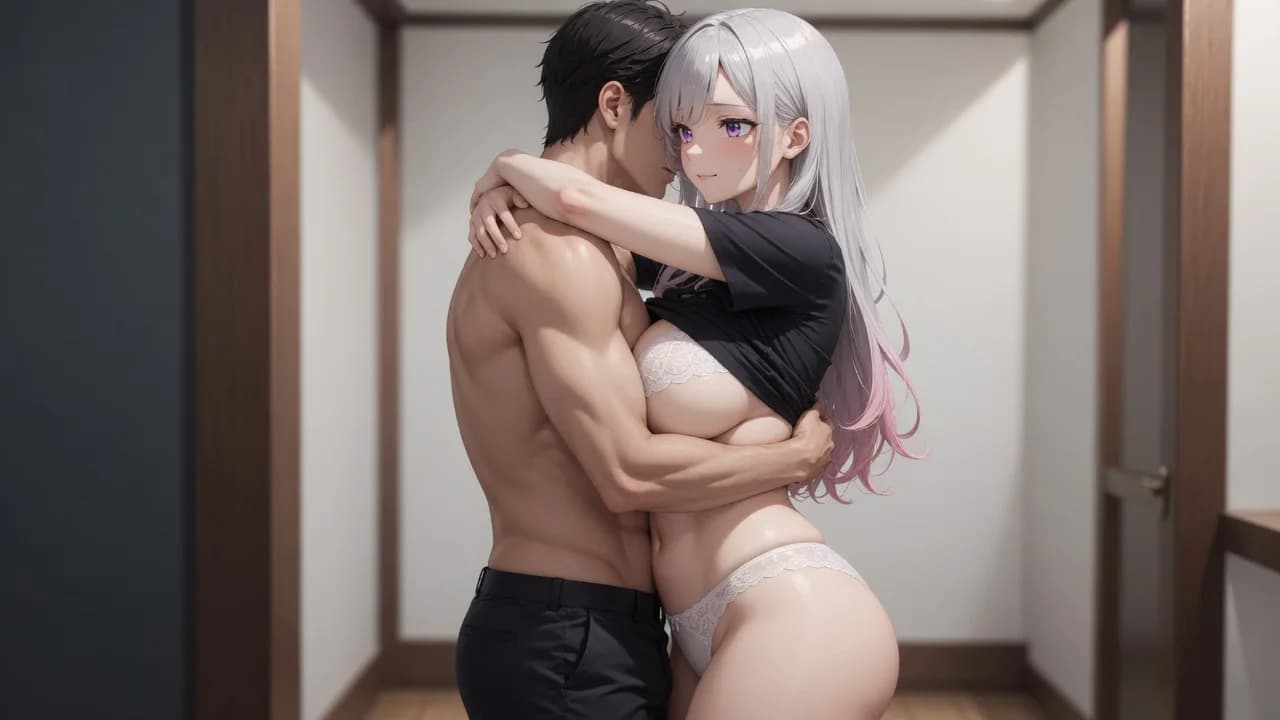
AI hug video workflow
- What an AI hug generator from two photos actually does
- Choose two photos that can wrap around each other
- How to make an AI hug video step by step
- Review identity, contact and continuity separately
- Common AI hug problems and fixes
- Image versus five-second video
- How this differs from kiss, face swap and clothes tools
- Couples, characters and consent
- FAQ
An AI hug video is a two-person generation problem: both identities must stay recognizable while arms wrap, chests come closer and the pose reads as a real embrace rather than two people standing side by side. The useful question is not only “did they hug?” but “did both faces, body contact and the scene stay stable before and during the motion?” This guide gives a repeatable way to prepare two photos and review the result on LumiChat.
What an AI hug generator from two photos actually does
A two-photo hug workflow starts with one reference for each person. The generator reads visible identity and body cues, composes one shared embrace frame, then—if video is selected—adds a short continuous motion pass such as a slow approach, arm wrap and gentle sway. It does not take an existing hug video, preserve original motion or keep original sound. The result is newly generated media guided by the two images.
On LumiChat, both subject slots are required. Each slot can use an authorized upload or an eligible original character from the LumiChat character library. You can create a still image or a five-second clip. The live AI Hug Generator shows the current output and credit estimate before generation.
Choose two photos that can wrap around each other
Start with clearly adult subjects, one visible person per image and shoulders plus upper arms visible when possible. Face clarity matters, but hug success also depends on body contact points. Similar head scale and lighting help more than matching backgrounds.
| Photo check | Better input | Why it helps |
|---|---|---|
| Framing | Head-to-waist or clear half-body | Leaves room for arms and torso contact |
| Arms | Hands not covering the face | Reduces extra fingers and face occlusion |
| Head angle | Front or gentle three-quarter view | Keeps both identities readable in a close pose |
| Light | Soft light from a similar direction | Makes skin and clothing easier to blend |
| Background | Simple, uncluttered | Limits background pulsing during motion |
Avoid pairing a tiny cropped face with a full-body shot, an extreme profile with a straight-on portrait, or a busy concert photo with a studio headshot. Those pairs force the model to solve identity, scale, camera and contact at once.
How to make an AI hug video step by step
- Open the AI Hug Generator and place the first adult in Subject A.
- Add the second authorized adult or original character in Subject B.
- Confirm each preview shows one clear person with visible shoulders when possible.
- Choose Image to inspect the embrace frame first, or Video for a five-second clip.
- Review the displayed credit estimate, sign in when generation starts and wait for the result.
- Inspect both identities, arm wrap, torso distance and continuity before downloading.
Our practical rule is contact before motion. If the still does not show a real wrap—arms around the back or shoulders, chests close, heads naturally placed—the video rarely becomes more convincing. Motion can add breathing and sway, but it cannot repair a weak embrace geometry.
Review identity, contact and continuity separately
Do three passes. First, cover one side of the result and compare each face with its reference: eyes, jaw, hairline and face shape. Second, inspect the hug itself: arm path, shoulder contact, torso distance and whether the pose looks physically possible. Third, watch the full clip for clothing flicker, extra hands, drifting faces or a sudden camera cut.
This separation makes regeneration decisions clearer. Weak identity needs sharper references. Weak contact needs better framing or more compatible body crops. Motion-only drift may still leave a usable still.
Common AI hug problems and fixes
| Problem | Likely cause | Better next attempt |
|---|---|---|
| Side-by-side pose, not a hug | Cropped arms or distant full-body inputs | Use half-body frames with visible shoulders and arms |
| Arms melt into clothing | Dark sleeves against dark jackets | Choose clearer sleeve edges or lighter contrast |
| One face drifts | Soft, small or obstructed second photo | Match face size and use a sharper second image |
| Extra hands | Hands near faces in the references | Pick portraits with hands away from the face |
| Background pulses | Busy patterns or mixed lighting | Prefer plain backgrounds and similar illumination |
| Unnatural lean | Extreme height or camera mismatch | Pair similar camera heights and body scales |
Change one variable per retry. Replacing both photos, framing and output mode together hides which change helped.
Image versus five-second video
Choose Image for cards, private concepts, long-distance messages or a fast identity check. Choose Video when the embrace frame already looks right and the value comes from the approach, wrap, breathing or gentle sway. A five-second clip is intentionally short: longer motion creates more chances for identity and anatomy to drift.
Generation pricing and options can change, so trust the estimate shown in the tool. The pricing page explains broader account options; the generator remains the source of truth for the selected task.
How this differs from kiss, face swap and clothes tools
Use the hug tool when the goal is body contact and a shared embrace. Use the AI kissing video guide when the scene is a close facial contact. Use the face swap video guide when one identity should replace another on a target body. Use clothes tools when wardrobe is the only change. Picking the right template reduces failed retries.
Couples, characters and consent
Useful scenes include reunion concepts, long-distance messages, memorial stills handled with care, and fictional character pairings. Keep public examples tasteful and private material private. A technically successful result is not automatically appropriate to publish.
Use only content you own or are authorized to process, and obtain both depicted adults’ consent for generation and any sharing. Do not use minors, age-ambiguous people, recognizable public figures without rights, or unsuspecting private people. Never use generated intimacy for impersonation, harassment, fraud or to claim a real event occurred. Review the current Privacy Policy before uploading personal media.
FAQ
Can I make an AI hug video from two separate photos?
Yes. Use one clear adult reference for each subject. Similar face scale, visible shoulders and compatible lighting usually make the embrace easier to compose.
Do the two photos need the same background?
No. Framing, arm visibility, face size and lighting matter more. Simple backgrounds reduce scene flicker.
Should I start with image or video output?
Start with image when the pair is difficult. Confirm the wrap and both identities first, then generate video from a stronger setup.
Can I use one photo and one LumiChat character?
Yes, when the character is eligible for the tool. You may also use two authorized uploads or two eligible original characters.
Is the result an edited version of an uploaded hug video?
No. The tool creates new media from two image references. It does not preserve the motion or sound of a source video.
How long is the LumiChat AI hug video?
Video output is one continuous five-second clip under the current template. Check the live tool because settings can change.
Why do the people look side by side instead of hugging?
The model needs body-contact cues. Use half-body portraits with visible shoulders and arms rather than tiny face crops.
Do I need permission from both people?
Yes. Use only authorized adult photos and obtain consent for both generation and any sharing of the result.

Create your own scene
Make an AI hug video from two photos
Choose two authorized adult photos or original LumiChat characters, review the current output and credit estimate, then generate an image or short video.
Continue reading
Two-photo AI video guide
How to Make AI Kissing Videos from Two Photos
A practical two-photo workflow for choosing compatible faces, composing the kiss frame and reviewing the short video before you save it.
AI virtual try-on guide
How to Change Clothes in a Photo Using AI
A practical virtual try-on workflow for choosing photos, guiding a specific outfit and judging the generated look without confusing it with real sizing.
Two-photo face swap guide
How to Make an AI Face Swap Video from Two Photos
A practical target-photo and source-face workflow for creating a face swap image, animating it and checking identity without changing the whole scene.
Adult AI safety guide
How to Choose a Legitimate AI Clothing Remover
A practical checklist for separating transparent adult photo tools from risky uploads, misleading free claims and unclear subscriptions.